This topic describes how to apply Multi-dimensional autoscaling (“MDA”) using the UI.
MDA combines these optimization capabilities:
Pod rightsizing: optimizes CPU and memory resources for individual Pods
Replica optimization: optimizes minimum replica counts for workloads
When you apply MDA capabilities from the UI, Zesty adds or updates a policy annotation on the workload.
Pod rightsizing can be applied on its own, but Replica optimization cannot be applied without Pod rightsizing.
Apply MDA optimization
You apply MDA capabilities to a workload using the Multi-dimensional autoscaling tab of the workload recommendation drawer (“drawer”).
To see the drawer, click anywhere in the workload row in the Clusters > Workloads tab.
The Multi-dimensional autoscaling tab
The tab has these sections:
Overview: Shows the workload context.
Savings banner: If MDA can save money for this workload, a potential savings banner is displayed. Savings is based on applying the shown recommendations with Balanced policies.
Optimization sections:
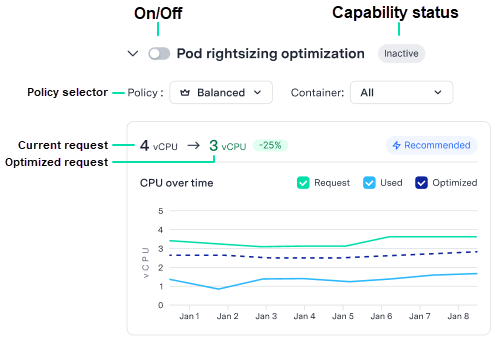
Toggle: Turn the capability on or off.
Capability status for this workload: Active, Inactive, or In progress
Policy selector: When you change this, the graph updates to show optimization for the selected policy.
Current request → Optimized request: Shows the expected effect of optimization.
Graphs show the effects of the different built-in policies based on a selected policy and container (Pod rightsizing only). The Optimized line shows the resource request after optimization.
For more information about the built-in policies, see:
Not seeing this in your user interface?
If your user interface looks different, your cluster is running an older version of the Insights agent. For more information, see Deprecated Pod rightsizing topics.
Prerequisites
Pod rightsizing is enabled on the cluster.
For more information, see Enable Pod rightsizing.
If you attempt to apply Pod rightsizing to a workload before the solution is enabled on the cluster, you can enable it directly from the drawer.
To apply MDA optimization capabilities to a workload from the UI:
From the Clusters > Workloads tab, click anywhere in the row of a workload with a recommendation.
Tip
You can filter to see only the workloads with recommendation by turning on Recommendations only.
The workload recommendation drawer is displayed.
Select the Multi-dimensional autoscaling tab.
Not seeing this in your user interface?
If your user interface looks different, your cluster is running an older version of the Insights agent. For more information, see Deprecated Pod rightsizing topics.
Turn on the desired capabilities.
Replica optimization cannot be applied by itself. If you turn this on, Pod rightsizing is automatically turned on.
Choose a policy to apply.
If you choose Custom, choose the name of the custom policy.
Click Apply to workload, then confirm.
After you apply a policy, the drawer refreshes to display the requested state. Updated values remain blurred until the policy is successfully applied.
See changes in workloads metrics
After MDA capabilities are active on a workload, the drawer display changes to show the applied policy:
You can see the all-time savings since the capability was first applied and the savings from the last 30 days.
In the graphs, the Request line is now the optimized request that was applied by the capability.
Change or remove the current optimization policy
After an MDA capability is active on a workload, you can make the following changes to the capability:
Change the selected policy
Remove the current policy
Apply an additional capability
From the UI, you can only change or remove the capability if it was originally applied from the UI, that is, with a policy annotation.

To change or remove a policy that is not managed by annotation, see Manage policies with YAML.
To change or remove the optimization policy on a workload:
From the Clusters > Workloads tab, locate the workload to edit and click anywhere in its row.
The workload drawer is displayed.Make desired changes
Click Apply to workload then confirm.
The drawer may refresh, depending on the changes you requested.