This topic describes how to verify that an Azure account has the required permissions to onboard to Zesty.
These permissions are required before onboarding:
Billing account Owner on an MCA billing account, or Enterprise Administrator on an EA billing account
The account used for onboarding must be one of the following:
Billing account Owner on an MCA billing account
Enterprise Administrator on an EA billing account
To determine whether your billing type is MCA billing account or EA billing account, click here.
Log in to the Azure portal.
The login user must have billing permissions.Search for and open Cost Management + Billing.
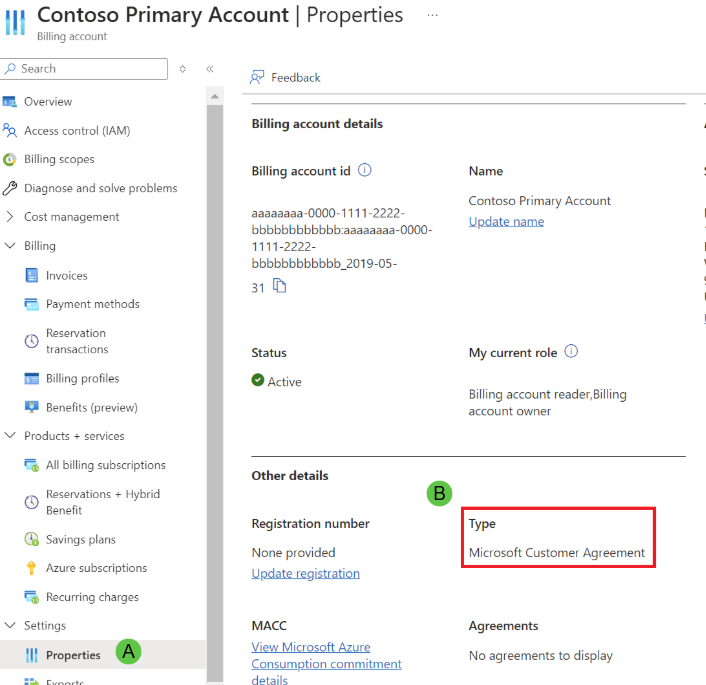
From the Billing menu, choose Settings > Properties (A).
Verify the billing type in the Other details > Type (B) field:
Proceed to the section for your billing type.
To verify if the user is a Billing account Owner on an MCA billing account:
Log in to the Azure portal.
The signed-in account must have permission to view the billing account and its role assignments.Open Cost Management + Billing.
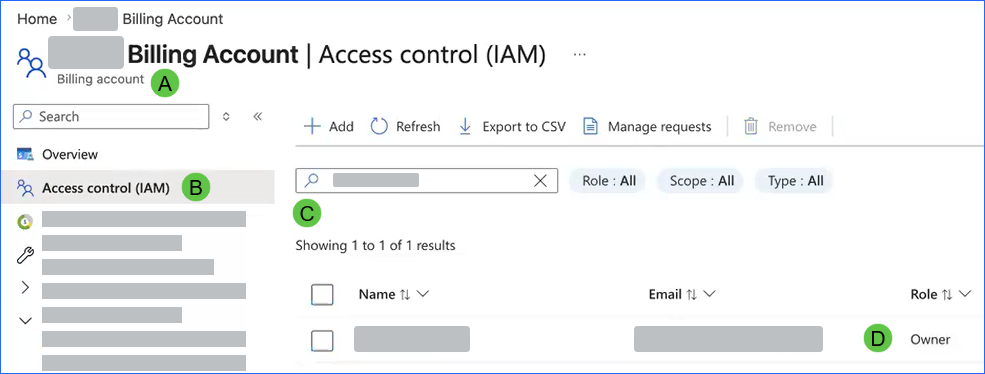
Open the MCA billing account (A).
From the billing account menu, select Access control (IAM) (B).
Enter the user name in the search field (C).
In the Role column, verify whether the user is assigned the Owner role (D).
To verify if the user is an Enterprise Administrator on an EA billing account:
Log in to the Azure portal.
The login user must have EA enrollment permissions to access the enrollment management area.Open Cost Management + Billing.
Select Billing scopes, then select the EA billing account.
Select Access Control (IAM)
In the role assignments list, locate the user and verify their role is Enterprise Administrator.
Owner or Contributor on the root management group
Log in to the Azure Portal.
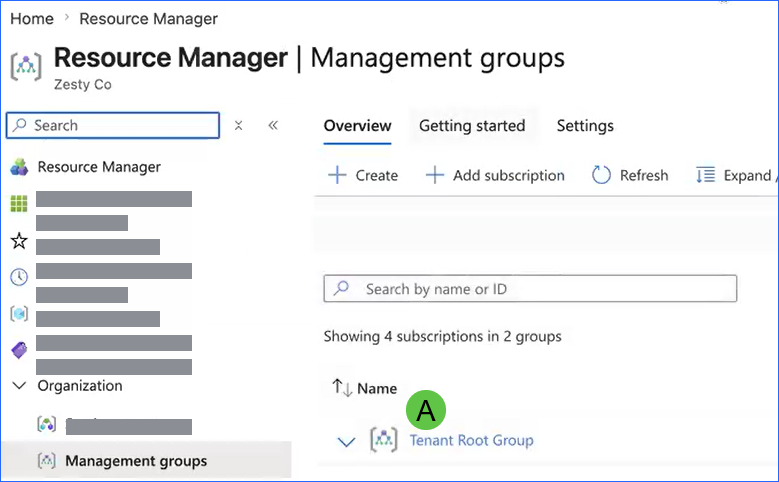
The signed-in account must have permission to view role assignments on the root management group.From Azure Resource Manager, search for Management groups.
From the Management groups tab, click Tenant Root Group (A).
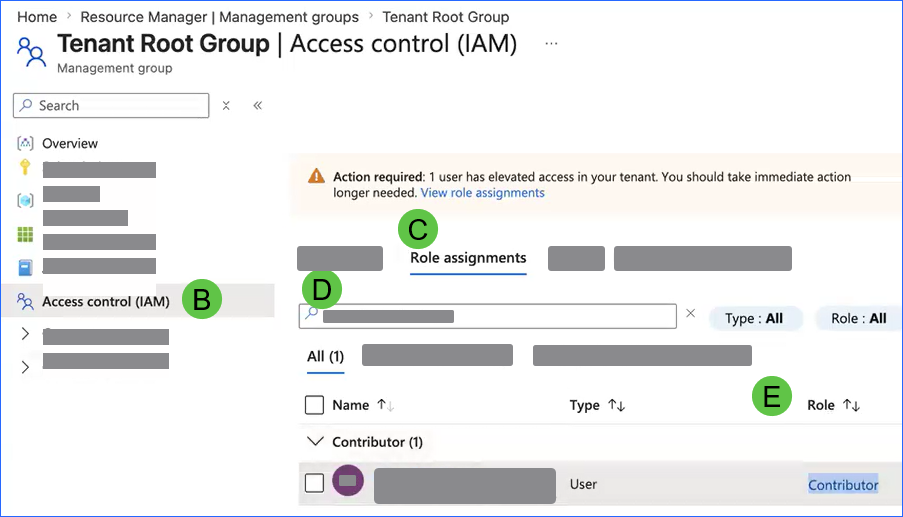
From the Tenant Root Group tab, select Access control (IAM) (B).
Select the Role assignments tab (C).
Search for the user name (D).
In the Role field, verify whether the user is assigned the Owner or Contributor role (E).
Global administrator, with elevated access to management groups or subscriptions.
There are 2 permissions that need to be verified:
The user is a Global Administrator.
The user has elevated access to either management group or subscriptions.
To verify Global Administrator role through the Users menu:
Log in to the Azure portal with the user ID whose permissions you want to verify.
From the menu, select Users.
From the Users page, search for the user name.
Click the user name to view their unique user information.
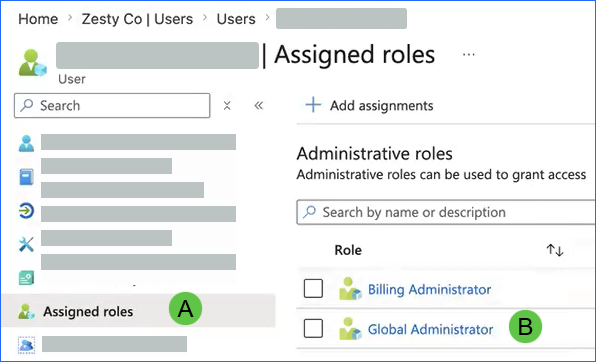
The user name is shown at the top left.From the user menu, click Assigned roles (A).
In the Role field, verify the user is a Global Administrator (B).
You can also verify using Roles and administrators > Global Administrator.
To verify elevated access:
From the user verified as Global Administrator, open Microsoft Entra ID.
From the tenant menu, select Manage > Properties.
Under Access management for Azure resources, verify the selection is Yes.
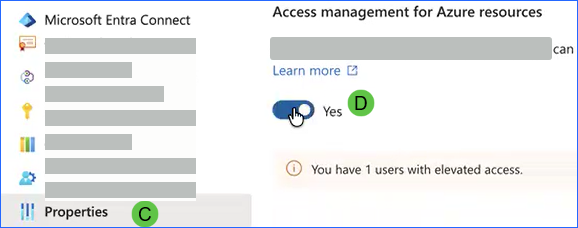
If it’s not, set it to Yes, then click Save.
You can also verify using Microsoft Entra ID > Properties.