This topic describes how to apply and manage Pod rightsizing using the UI.
To use YAML, see Apply and manage Pod rightsizing with CLI
Apply Pod rightsizing to a workload with the UI
You apply the Pod rightsizing solution to a workload using the Pod rightsizing tab (“tab”) of the workload recommendation drawer (“drawer”).
To see the drawer, click anywhere in the row of the recommendation in the Workloads tab.
Note: If the Insights agent is not installed in the cluster, recommendations are not displayed, so you cannot access the drawer. To install the Insights agent, see Install the Kompass Insights agent.
When you apply a Pod rightsizing policy to a workload, Kompass adds or updates a policy annotation on the workload.
Pod rightsizing tab
The following figure illustrates the Pod rightsizing tab of the drawer:
.png)
Is your UI different?
If your Pod rightsizing drawer looks different - it only shows the Default and Conservative strategies - your cluster is running an older version of the Insights agent.
See Deprecated Pod rightsizing topics.
The tab has these sections:
Overview: In this section, equal across all the tabs, you can see basic workload data, such as workload and cluster name, namespace, and cost. To see a graph of cost over time click View over time. The tab name shows whether the solution is currently active or inactive.
Policy optimization: Select a policy to apply to the workload:
Balanced: A balanced setup with moderate buffers and stable recommendations for general workloads.
Stability-focused: Prioritizes availability and resiliency by using longer lookback periods and larger buffers. Suitable for mission-critical or long-lived services.
Cost-focused: Aggressively minimizes overprovisioning to reduce cost with minimal buffers and fast reaction to utilization drops. Suitable for non-critical or stateless services.
Custom: A policy that you created.
For more information about the default parameter settings for the built-in policies, see Built-in policy default values.
Optimization comparison: In this section you can compare how Pod rightsizing will change current CPU and RAM requests to lead to expected optimized metrics.
All data is based on the selected policy on a specific container with resource requests.
To see data for a different policy or container, change the selections.
You can also see the expected change comparisons in graph form. On the graph, you can change the time period.
Prerequisites
Pod rightsizing is enabled on the cluster.
For more information, see Enable Pod rightsizing.
If you attempt to apply Pod rightsizing before it is enabled, you can enable it directly from the drawer.
To apply Pod rightsizing to a workload from the UI:
From the Clusters > Workloads tab, identify a workload with one of the Pod rightsizing recommendations:
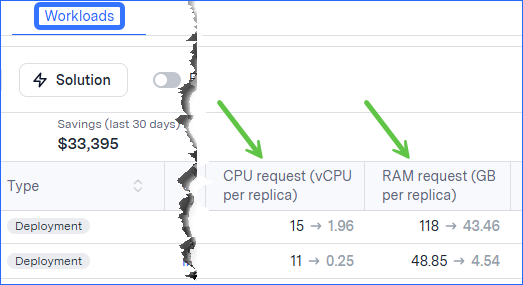
Tip: You can filter to see only workloads with recommendation by turning on Recommendations only.Click anywhere in the row of the workload to be optimized.
The workload recommendation drawer is displayed.Select the Pod rightsizing tab. For more information about the data shown in the tab, see Pod rightsizing tab.
Select a Pod rightsizing policy.
You can choose a built-in or a custom policy.
For custom, after selecting Custom, choose the name of the custom policy.Click Apply to workload, then confirm.
The drawer closes and the Workloads tab shows a message that the solution is being applied. During the application process, a clock icon is displayed next to the solution name in the Active solution field.
See changes in workload metrics
After Pod rightsizing is active on a workload, the drawer display changes to show the applied policy:
From the General section, you can see general information about the current policy and also whether it was applied by annotation, that is, from the UI.
From the Impact report section, you can see changes in CPU and RAM requests and all-time savings from when optimization was first applied.
In the graphs you can see CPU and RAM resources vs. requests.
The graph data is based on a specific container with resource requests.
To see data for a different container, change the selection.
You can also see the history of all changes the solution has made in the Audit log.
To see changes in workload metrics:
From the Clusters > Workloads tab, find the workload and click anywhere in its row.
You can find the workload by searching for its name or using the filter options.
For more information, see Viewing tips for easier workload management.To see data for a specific container, select a container and time period.
Manage active Pod rightsizing on a workload
You can change the policy or remove the Pod rightsizing that is active on a workload.
Change the current Pod rightsizing optimization policy
After Pod rightsizing is active on a workload, you can change the current optimization policy. Changes take effect within an hour.
From the UI, you can only change the policy if it was originally applied from the UI, that is, with a policy annotation.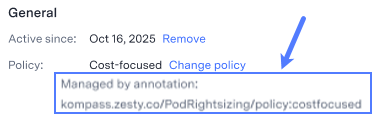
To change a policy that is not managed by annotation, see Manage policies for Pod rightsizing - CLI.
To change the optimization policy on a workload:
From the Clusters > Workloads tab, find the workload and click anywhere in its row.
The workload drawer is displayed.From the General section, click Change policy.
Choose an alternate strategy.
Click Change policy, then confirm.
A confirmation message is displayed.
Remove Pod rightsizing from a workload
After Pod rightsizing is active on a workload, you can remove the optimization. Removal takes effect within an hour.
From the UI, you can only remove the policy if it was originally applied from the UI, that is, with a policy annotation.
To remove a policy that is not managed by annotation, see Manage policies for Pod rightsizing - CLI.
To remove Pod rightsizing from a workload:
From the Clusters > Workloads tab, find the workload and click anywhere in its row.
The workload is displayed in the drawer.From the General section, click Remove, then confirm.
A confirmation message is displayed.